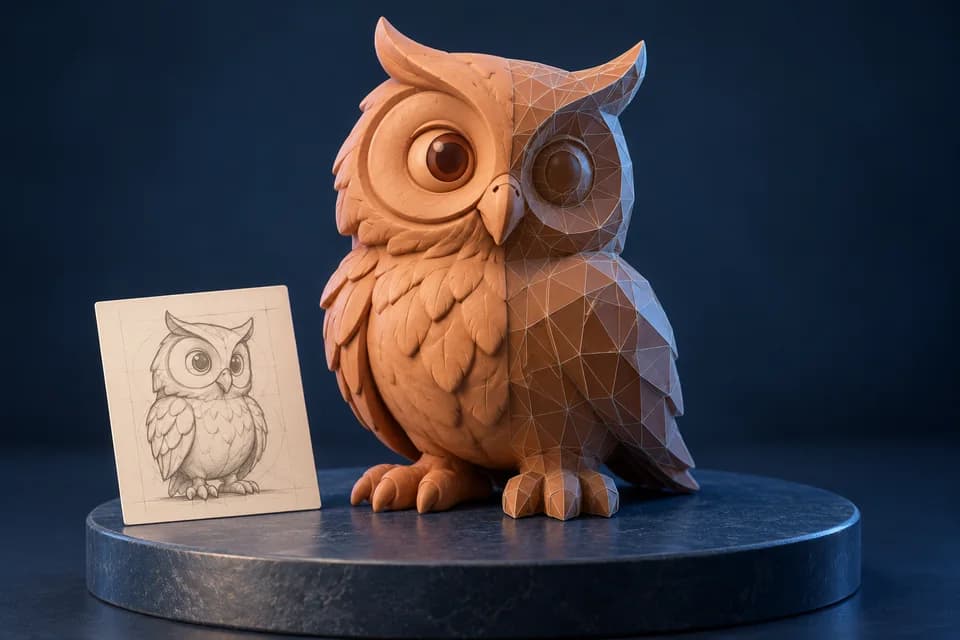
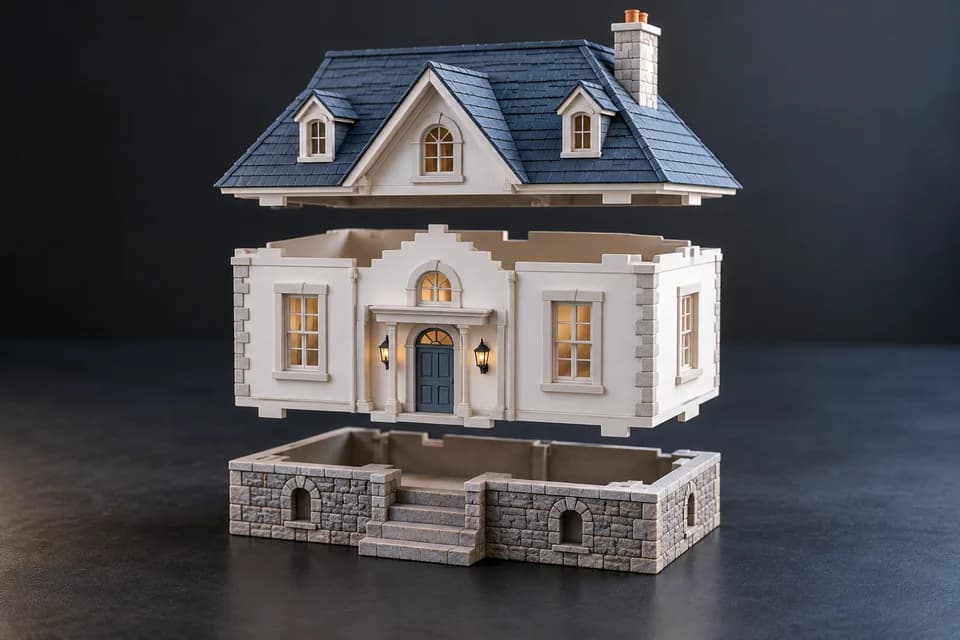
Yes, a Meshy-generated model can be part of a 3D printing workflow if its geometry is suitable and your export access allows it. A good-looking textured preview does not prove that a mesh is printable.
Can Meshy models be 3D printed? Start with the surface
Meshy models can look complete in a rendered preview while containing open edges, intersections, isolated fragments or details that exist only in a texture. A print requires physical geometry that your printer and material can reproduce. A download button alone does not establish that.
This preflight follows software documentation. We have not tested a Meshy-generated file or printed the result.
What a Meshy 3D printing workflow needs
You need export access under your current plan, a suitable mesh editor when corrections are required, and a slicer with a compatible printer profile. Keep the original download, the edited project and the final exported mesh as separate files.
Step 1: confirm export access and permitted use
Check the formats available for the generation mode and plan you used against Meshy’s current product and plan information. The Meshy review explains the free-plan attribution condition. If the download is a textured scene file, open them in a suitable editor and export the intended mesh as STL when needed. Verify the current terms for your intended use, including any commercial or attribution conditions.
Rights to the source image and depicted design are a separate consideration. A service permitting commercial output does not grant permission to sell a protected character supplied as a reference.
Step 2: switch off textures and inspect the surface
Turn off textures and rotate around the object. Look underneath feet, inside cavities and between touching components. Check whether fine details are actual geometry. For example, a painted groove will not become a recessed line in a standard STL print.
Identify disconnected shells and decide whether they are intentional parts. Inspect open boundaries and intersecting surfaces in an editor. Our STL Viewer can help you look at a mesh, but does not certify it as watertight.
A concrete example of texture detail disappearing
Our downloadable format example uses a blue-and-white checker texture on a plain box. We exported it in Blender 4.5.9 and reimported the STL: the box remained, with 12 triangles, but no image texture or material. The colored squares did not turn into recesses or raised tiles.
That original box was made for this explanation, not generated in Meshy. It demonstrates the delivery problem: if an important groove is only painted into an output texture, exporting STL cannot turn it into physical relief. You need to model the feature, or accept a smooth surface and add the appearance after printing.
Step 3: set dimensions and inspect thin features
Set the intended physical dimensions explicitly. STL stores coordinates without a dependable physical unit declaration, so use the same unit convention in your exporter and slicer. The Model Size Checker can reveal a scale mismatch before you start preparing supports. Set the unit used during export, then compare the X, Y and Z values with the intended print size.
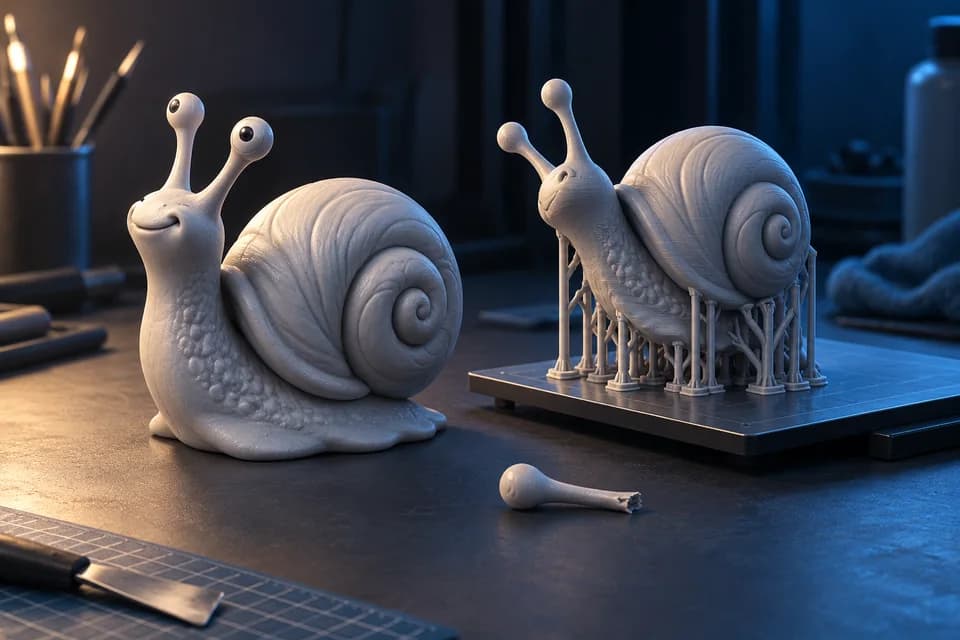
Small features need particular attention. A thin decorative horn that looks fine at screen scale may be fragile or impossible to reproduce at the chosen print size. Thicken or simplify it according to the process you will use.
Step 4: choose orientation and supports
Orient the part to balance detail, stability and support removal. A resin print and a filament print can need different preparation. Hollowing also introduces drainage, wall and cleanup considerations; it should be deliberate rather than an automatic response to material cost.
Step 5: inspect the sliced layers
After slicing, look through the whole slice, especially the first layers, thin sections and newly appearing islands. Correct problems in the model or process settings rather than assuming the printer will resolve them. Start with a small representative test when a critical detail or fit is uncertain.
When inspection reveals a problem
If a detailed mesh is difficult to repair, simplify or rebuild the important region in Blender. If exact dimensions matter, use a measured CAD model. If the object is too large, plan a split and joining method before exporting separate parts. For an STL with no export error but missing colored detail, revisit the difference between geometry and materials.
Repair a region or rebuild the part?
If the problem is one thin horn or a detached accessory, a focused mesh edit may be enough. If the part must fit measured hardware, rebuild that region in CAD. If much of the apparent detail disappears without textures, changing the file format alone will not recover it.
Does converting GLB to STL fix printability?
No. It changes the delivery format and normally discards material information. It does not automatically fix the geometry or choose correct physical dimensions.
Can I print character-based Meshy models and sell them?
No blanket permission applies. Check the service terms, the source rights and any rights associated with the character or design.
Research method & official sources
Initial source review . This page uses official documentation; later source checks and any executed file examples are dated and scoped in the text. We have not benchmarked AI generation quality or performed physical print tests.
Read our editorial and affiliate standards. Product recommendations do not depend on an affiliate relationship.