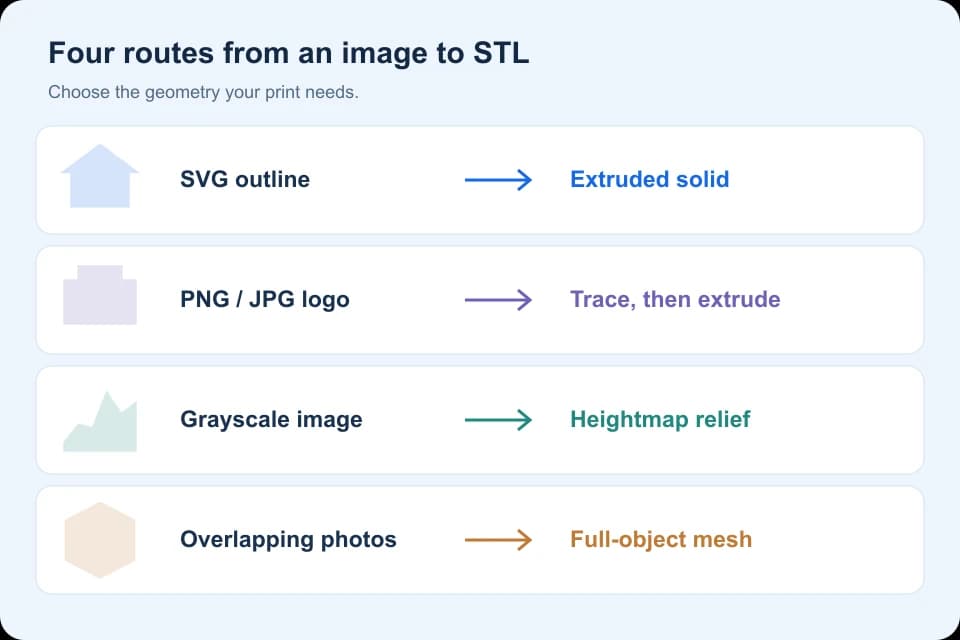
One photo can guide an AI interpretation; several overlapping photos can support a reconstruction. For a real object, this guide follows Meshroom from photo import through camera alignment, meshing and textured OBJ export. Its standard dense workflow needs compatible hardware; a single photo cannot supply the hidden surfaces.
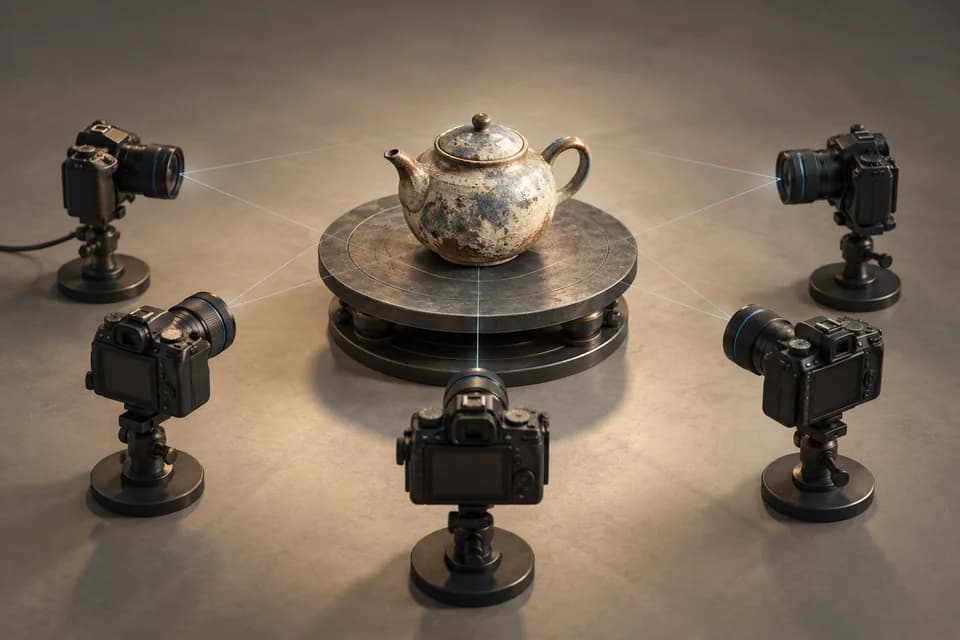
Photo to 3D: one image or a set of photographs?
Single-image photo-to-3D services infer unseen surfaces with AI. Photogrammetry reconstructs observed surfaces from overlapping photographs. Choose the method by the job: an invented back may suit a game prop, but not a record of a real object.
For a single-image photo-to-3D experiment, use the AI generator shortlist to choose a service with appropriate input and output rights. This tutorial follows the multiple-photo route in Meshroom, from image import to a textured mesh. It follows documentation; we have not scanned a supplied object.
Check the documented version and hardware
The linked manual identifies itself as Meshroom v2023.1.0 documentation. These steps are based on that version, not a verified walkthrough of the latest release. Start with the official beginner tutorial and its linked releases. The documented workflow supports Windows and Linux, and the standard dense reconstruction pipeline requires a compatible NVIDIA GPU. Check the current release requirements; do not assume this is a native macOS workflow or that every laptop can run it.
The tutorial describes draft meshing as a separate, lower-detail option without the dense GPU stage. It is not equivalent to the standard pipeline. If your hardware is unsuitable for this reconstruction pipeline, choose a supported reconstruction application or a different workstation before taking a large set of photographs.
1. Choose a subject and capture overlapping views
For a first capture, choose an object with visible surface detail, such as a matte ornament. Transparent glass, reflections and large blank surfaces give the reconstruction fewer stable features to match. Keep the object still and move the camera around it, with substantial overlap between neighboring views. Add higher and lower viewpoints to cover the top, underside and recesses that matter.

Original capture-planning diagram. This illustrates coverage, not a tested photo count or an actual reconstructed object.
Keep focus, exposure and lighting consistent across the image set. Review the photographs at full size and remove blurred frames. A single sharp front view plus many blurred back views will not provide a complete reconstruction.
Record one real measurement for the scale check. Image reconstruction does not automatically establish the physical units needed for printing or fitted parts. For example, measure the width of the object with an appropriate measuring tool rather than assuming its apparent size in a photo is enough.
2. Import the photographs into Meshroom
Start a project in Meshroom: drag the image set into its Images panel, and save the project before processing. Keep the images at a stable path: moving or renaming inputs during reconstruction makes troubleshooting harder.
Use the default reconstruction graph for the first attempt. In the official tutorial, the graph moves through feature extraction/matching and StructureFromMotion before dense reconstruction and texturing. Check each stage before continuing.
3. Check camera alignment before dense processing
Right-click StructureFromMotion → Compute, as described in the tutorial. Inspect the reconstructed cameras and sparse point cloud in the project. The cameras should correspond sensibly to your capture path, and the point cloud should describe the subject rather than only its background.
If alignment loses many views, stop and inspect blur, overlap and repeated patterns. Add missing views or improve the input set before rerunning dense reconstruction. Raising every quality setting is unlikely to repair a missing view of the underside.
A reconstruction with an aligned front but no rear needs recapturing; it is not a complete reconstruction.
4. Retrieve the mesh and its texture files
When alignment is credible, run the remaining reconstruction stages. Wait for the meshing and Texturing stages to complete. Click Load Model in the 3D Viewer to inspect the textured mesh. In the viewer’s media list, right-click Texturing → Open Containing Folder to retrieve the output files, as shown in the official tutorial. The files are already on disk; there is no separate export step.
Keep the output OBJ, material file and texture images together. Open the OBJ in an editor or viewer that supports the package and inspect the texture paths. An untextured import may be a missing companion-file problem rather than a failed reconstruction. Our format comparison explains this distinction.
5. Scale and clean the reconstructed mesh
Scale the mesh against the measurement recorded during capture. On a duplicate, remove background geometry and inspect holes and thin regions. Keep the original output files for another cleanup attempt.
Blender is a useful editing option, but an arbitrary scanned surface does not become a dimension-driven CAD model by being imported. If your goal is a print, export the prepared surface as STL and use the size checker to confirm the unit convention.
Diagnose the failed stage before repeating the run
- Missing cameras: revisit overlap, focus and subject texture before dense processing.
- A missing bottom: capture that region separately or model it deliberately; label any reconstructed-by-hand area accordingly.
- A web asset is too heavy: keep the original, then reduce geometry and textures for the receiving application.
- A part must mate with hardware: use measured modeling. A visually recognizable scan is not evidence of dimensional tolerance.
If the source for your project is a flat logo rather than a physical subject, skip photogrammetry and follow the image-to-STL outline method. If only one photo exists, choose an AI interpretation with that limitation understood; collecting more pixels from the same viewpoint cannot reveal the hidden side.
Research method & official sources
Initial source review . This page uses official documentation; later source checks and any executed file examples are dated and scoped in the text. We have not benchmarked AI generation quality or performed physical print tests.
Read our editorial and affiliate standards. Product recommendations do not depend on an affiliate relationship.